
How Can We Help?
How to use the Get Care page
To improve the patient experience, we have added a new Get Care page to VirtualCare. The Get Care page is a one-stop shop for reviewing and scheduling visits. Opening VirtualCare will bring the patient directly to this page.
Note: The Get Care page replaces the old Visits page.
Get Care page overview
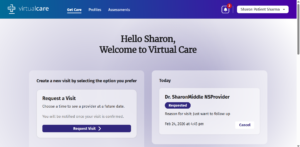
The Get Care page has two main sections. The left-side is where patients have the ability to schedule a visit in advance.
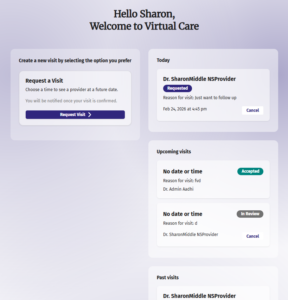
The right-hand side displays the patient’s visits. Your visits are organized in three main categories, based on date: Today, Upcoming visits, and Past visits. Real time updates will display in the Today section. All Completed and Cancelled visits display in the Past visits section. If a visit in the Upcoming visits section is Completed or Cancelled, they will automatically move to the Past visits section.
Patients: How to review a visit
To review a visit, locate and click the visit card in any of the categories.
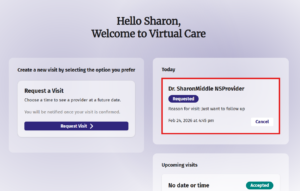
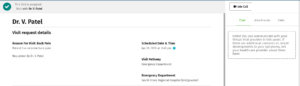
The visit details will display, where a patient may review the information provided or join the call.
How to join a scheduled visit
When a visit has been requested, it will display in the list with a status of Requested.
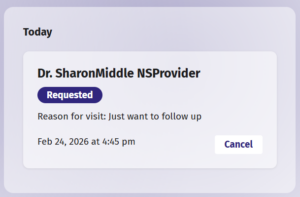
When a provider is reviewing the visit file, it will have a status of In Review.
When the visit has been accepted, it will have a status of Accepted.
On the date and time of your scheduled visit, a Join call button will display on the card.
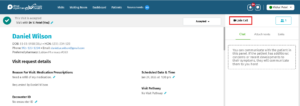
Note: The Join call button is enabled 5 minutes before a visit is set to begin on the Get Care page and within a visit’s details. This will enable patients to join a call easier. If you’d like to join before that, click the visit card. The visit’s details will display. Then click the Join call button.
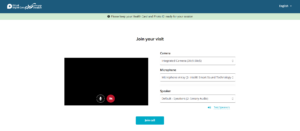
Your virtual visit will open in a new internet browser tab.
How to schedule a visit
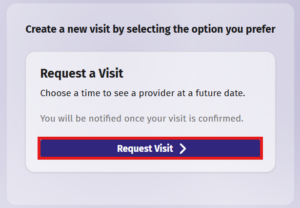
- Under Request a visit, click Request visit
- The emergency acknowledgement page will display. To confirm you are not currently experiencing an emergency situation, click Continue.
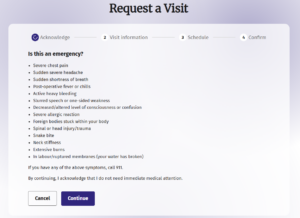
- On the Visit information page, select the reason for your visit from the dropdown. Provide any additional information if you can. You may also add photos or files you feel your provider should see. When ready, click Continue.
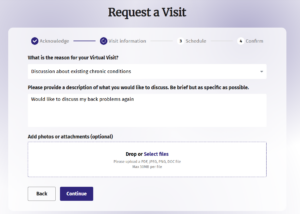
- On the Request a visit page, select a day from the list.
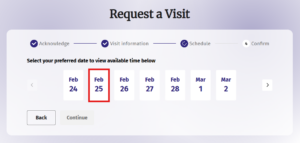
- Once a date has been selected, the preferred timeframe section will display. Select your preferred time frame from the options.
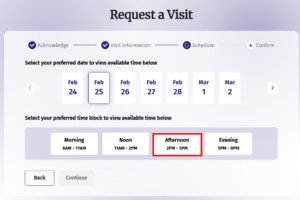
- Once a time frame has been selected, available times within that frame will display below. Click the appropriate time.
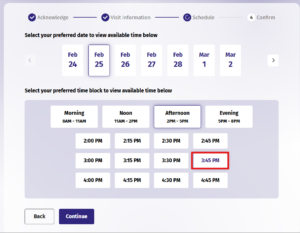
- When ready, click Continue.
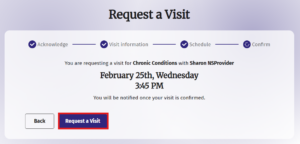
- A confirmation page will display with the selected date and time. To confirm, click Request a visit.
A confirmation page will display, letting you know the request has been submitted successfully. From here, you may add the date to your calendar or click View visit to review the details.
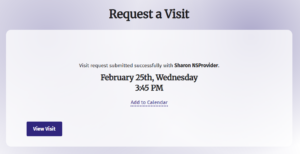
Additionally, back on the Get Care page, your requested visit will display under the Upcoming section.